

A complete guide to the functions of the WrangerView user interface.
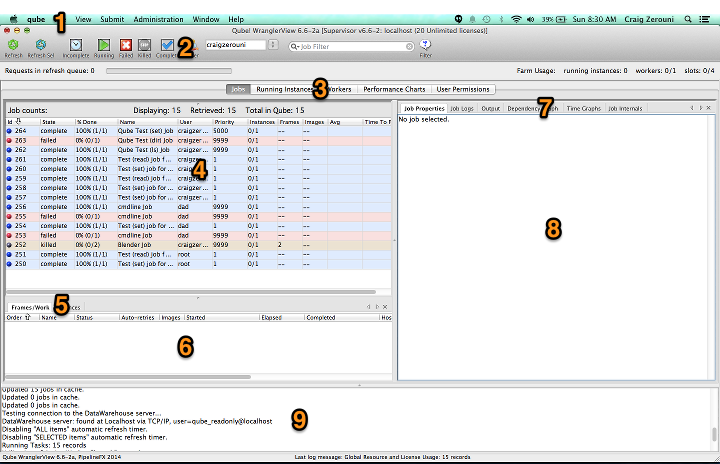
The numbered areas correspond to sections of the documentation:
- Menu Bar - The standard menu. Main Menu details.
- Filter & Search Bar - Use the Filter Bar to filter down the Job Layout to include only those jobs you are interested in. Filter & Search Bar details.
- Jobs/Workers Tabs - Switch Between Jobs Layout view and Workers Layout view. Jobs Layout details, and Workers Layout details. The Workers tab is not shown by default; you must enable it in Preferences.
- Jobs Layout Pane - The most significant portion of the job control and monitoring workflow. Jobs that are displayed here can be filtered, sorted and selected. Jobs Layout details.
- Frames/Instances Tabs - Examine the job or instance components in this pane. By switching tabs, you can examine a job's Frames (agenda items) or its Instances. The Instances tab is not shown by default; you must enable it in Preferences.
- Component Pane - This area shows information associated with the frames or instances associated with the job selected in the Jobs Layout Pane. Component Pane details.
- Detail Tabs - Use the detail pane to drill down into the specific details of each job or its components. Look at job logs, statistics, timing graphs, and frame previews (supporting Job Types only).
- Details Pane - This area shows various details of the job or its components, depending on the tab selected. Details Pane information.
- Messages Pane - Gives feedback about aspects of Qube!'s current actions